Syncing My RetroArch Game Saves From My Phone to My Steam Deck
I play retro games on both my iPhone and my Steam Deck, and I got tired of my saves being stuck on whichever device I last played on. RetroArch doesn’t have a built-in cloud sync, so I needed to come up with something myself.
My solution was to use a git repository to sync saves between the two devices.
Setup
1. Set Up SSH Access to GitHub
To push and pull without entering a password every time, you’ll need an SSH key set up on your Steam Deck.
GitHub has a good guide for this: Generating a new SSH key and adding it to the ssh-agent
Once your key is generated and added to your GitHub account, you’ll also need a ~/.ssh/config file so SSH knows to use the right key when connecting to GitHub. Create it if it doesn’t exist and add the following:
Host github.com
  HostName github.com
  User git
  IdentityFile ~/.ssh/id_ed25519
Replace id_ed25519 with whatever key name you used. Without this config file, you may run into authentication errors when the script tries to push or pull.
2. Create a Git Repository for Your Saves
Create a private repository on GitHub or GitLab, then clone it to your home directory on the Steam Deck using the SSH URL:
git clone git@github.com:<your-username>/<your-repo>.git ~/
3. Symlink the Repo into the RetroArch Saves Directory
EmuDeck stores RetroArch saves at ~/Emulation/saves/retroarch/saves. Your saves directory may be in a different location depending on how you have RetroArch installed, so double check that before running the symlink. Rather than changing any RetroArch settings, I symlinked the contents of the repo into that directory:
ln -s ~/<your-repo>/* ~/Emulation/saves/retroarch/saves
4. Create a Sync Script
I created a file called syncSaves.sh at my home directory:
cd ~/<your-repo>
git add .
git commit -m "backup from steam deck"
git pull
git push
Make it executable:
chmod +x ~/syncSaves.sh
You can also right-click the file in a file manager, go to Properties → Permissions, and check “Allow executing file as program”.
5. Add the Script as a Non-Steam Game
To run the sync script from Game Mode without switching to Desktop Mode every time, you can add it as a Non-Steam game in Steam.
- In Desktop Mode, open the Steam Library
- Click Games → Add a Non-Steam Game to My Library
- Browse to
syncSaves.shand select it - Once added, open the Properties for the new entry and set the Target to:
/bin/bash "/home/deck/syncSaves.sh"
Use double quotes around the script path to handle spaces, and the /bin/bash prefix ensures it runs correctly. After this you’ll have the sync script available as a launchable item from your Steam library.
6. Set Up the iPhone Side
On iPhone I use an app called Working Copy, which is a full git client for iOS. I cloned the same repository in Working Copy and linked it to the RetroArch saves directory using the iOS Files integration. RetroArch can then read and write saves directly into the Working Copy repo folder.
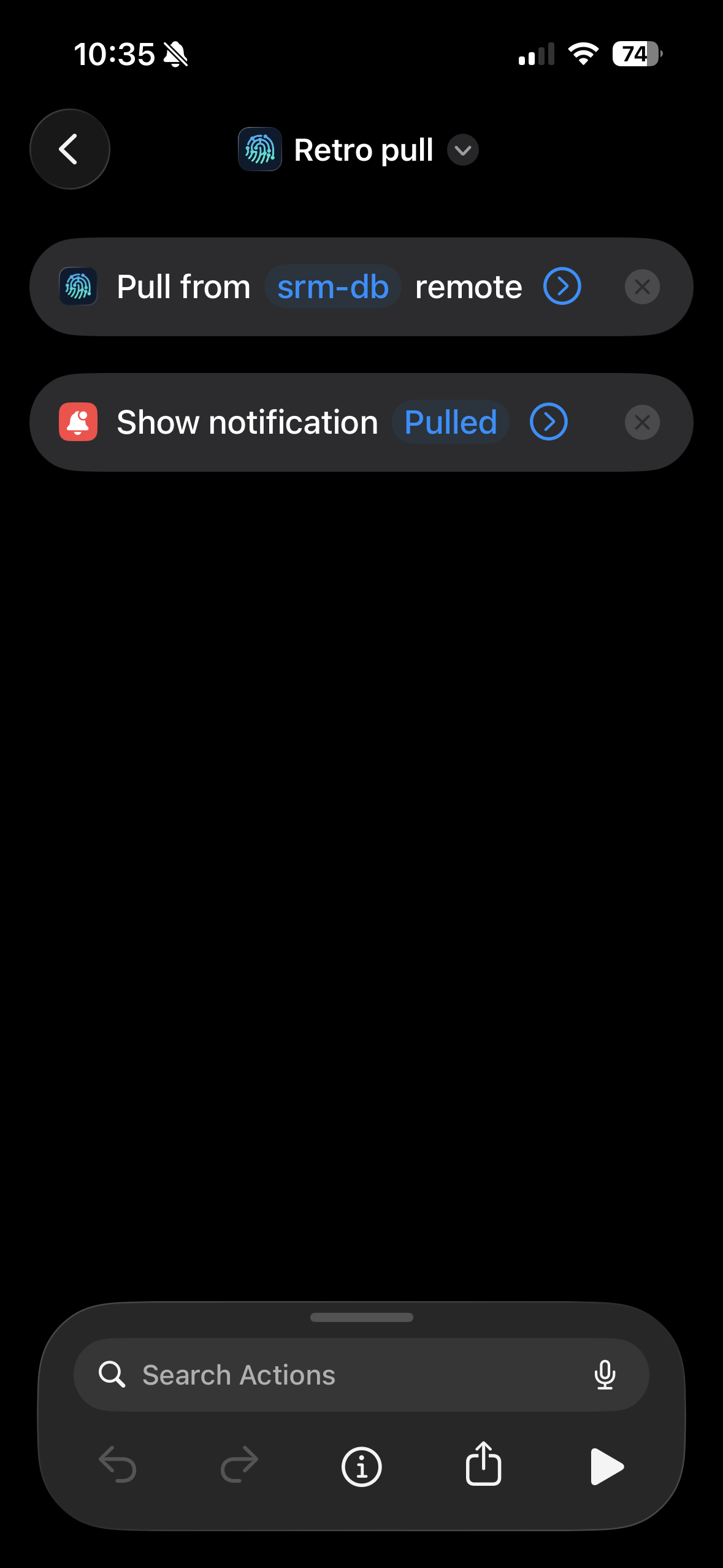
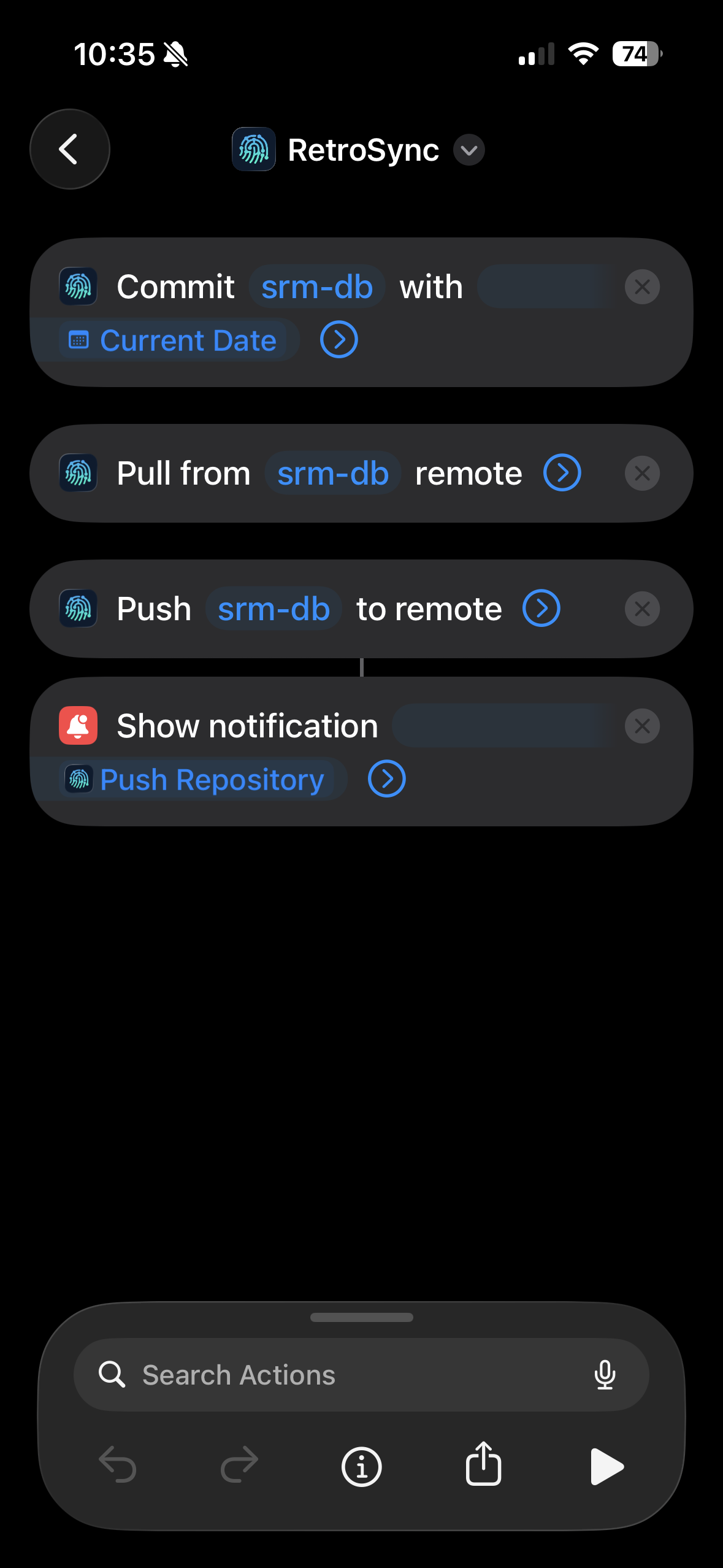
Working Copy also has Shortcuts support, so I created two home screen shortcuts — one to pull the latest saves before playing, and one to commit and push when I’m done. Each one is a single tap, so I never have to open Working Copy directly.
Here is what the pull shortcut looks like:
And the push shortcut:
The Workflow
- Tap the pull shortcut on my phone (or run
~/syncSaves.sh) before playing - Play games
- Tap the push shortcut (or run
~/syncSaves.sh) when done
It’s a manual step but it’s quick, and I haven’t lost any progress since setting this up.
Why Manual Sync Is Actually Better
One of the biggest perks of this approach is that I always know when my saves have synced because I’m the one triggering it. Before this setup I had issues with automatic sync tools where I had no idea if a sync had actually completed. I’d leave the house, open RetroArch on my phone, and find that my save hadn’t come over from the Steam Deck. At that point I didn’t even want to play because I didn’t want to create a conflict with the save on the Deck. So I’d just not play at all.
With this setup there’s no guessing. I run the script, I see git push succeed, and I know the save is up. Same on the phone — I tap the shortcut, Working Copy runs the pull, and I can see the result. It adds a tiny bit of friction but removes all of the uncertainty.
Why Not Use RetroArch’s Built-in Cloud Sync?
RetroArch does have a WebDAV-based cloud sync option. The catch is you need a WebDAV server that both devices can reach. Your options there are putting both devices on the same Tailscale network or paying for a VPS to host the server yourself. Both work, but this git approach is simpler and free as long as you’re using a free tier on GitHub or GitLab.
I hope this helps someone else in the same situation.